How to Redesign a Website Without Losing SEO?
Published
Scroll Down ↓

Maybe your tech is out of date, your site feels clunky, conversions are low or your brand has evolved. Whatever the reason, a website redesign can be a smart move. But before you get excited about new designs, make sure you have a plan to protect your current search rankings and carry them over to your new site.
If your organic traffic isn’t where you want it, a redesign can feel like a fresh start. But launching a new website doesn’t guarantee better rankings. In fact, if you’re not careful, you could lose the visibility you’ve already built. The key is to keep what’s working, carry those signals over, and use the redesign as a chance to fix what isn’t.
This guide covers everything you need to know about how to redesign a website without losing SEO, step by step, from the first audit to the months after launch. And if you'd rather have experts handle it, our team can plan it with you.
What Is a Website Redesign?

A website redesign is a big update to your site’s design, structure, content or technology. Most businesses take this step when their website no longer reflects their brand, serves users well or supports their goals.
What does a website redesign include?
A website redesign can include changes to a site's visual design, user experience, content, architecture, technical foundations, accessibility and SEO. Most redesigns involve several of these at once:
• Brand and visual design: layout, colour, typography and imagery
• User experience: navigation, user journeys, forms and interactive elements
• Content: messaging, page copy and which pages exist
• Site architecture: page hierarchy, URL structure and internal links
• Technical foundations: CMS, hosting, code, speed and security
• Accessibility: how easily everyone can use and understand the site
• SEO: keyword targeting, metadata, structured data and indexability
Website refresh vs website redesign
A website refresh and a full redesign aren’t the same thing. A refresh updates the look of your existing pages- think new images, colours or layouts, while the structure stays put. A redesign changes how your site is built or organised from the ground up.
That difference really matters for SEO. A refresh rarely puts your rankings at risk unless you’re making big changes to your content. But if you’re changing URLs, templates, navigation or your CMS, you’ll need a solid migration plan.
Website refresh | Website redesign | |
|---|---|---|
Scope | Visual updates to existing pages | Rebuild of design, structure, content or technology |
URLs | Usually unchanged | Often changed, merged or removed |
SEO risk | Low, unless content changes significantly | Medium to high without a plan |
How to Know It's Time to Redesign Your Website

It's time to redesign your website when it no longer reflects your brand, frustrates visitors, holds back conversions or limits what your team can do, and smaller fixes haven't solved the problem. These are the most common signs:
It looks out of date. Visitors judge your business in seconds. If your website feels old, customers might wonder if you’re still relevant or able to meet their needs. When Annex came to us, their site felt more like a static product catalogue. After the redesign, it finally represented their business as a whole brand.
Your brand or positioning has changed. If you’ve rebranded, launched new services or started targeting a new audience, your website is where most people will notice that first. Getting your brand strategy clear before you start the design process saves you from costly changes down the line.
Visitors struggle to find what they need. If you keep hearing “where do I find…” or see high exit rates on key pages, or your support team gets questions your website should answer, it’s a sign your structure isn’t working.
It doesn't work well on mobile. Google now uses mobile-first indexing, so it looks at your mobile site first when ranking pages. If your mobile experience is poor, you’ll lose out with both customers and search engines.
It isn't converting. If you’re getting steady traffic but few enquiries or sales, the problem is usually with your messaging, user journeys or calls to action, not your visibility.
Your CMS is holding you back. If you need a developer every time you want to add a page, update content or install a new tool, it might be time to invest in a new platform.
It’s slow, and fixes haven’t helped. If your site’s speed is held back by its code or platform, a full rebuild is often the only real solution.
It can’t support your SEO. If you can’t edit page titles, add structured data, create new landing pages or control your URLs, your website is holding back your search growth and making even the SEO basics harder than they need to be.
Whatever your reason, a redesign should build on the visibility you already have, not reset it.
How a Website Redesign Can Hurt Your SEO
A website redesign can hurt your SEO if you lose the signals that helped your pages rank. That happens when old URLs aren’t redirected, ranking content gets cut or rewritten, internal links break or staging settings accidentally block search engines.
These problems fall into six areas:
SEO risk area | What can go wrong | Potential SEO impact |
|---|---|---|
URLs & redirects | URLs change without proper 301 redirects, pages are deleted or redirects lead to irrelevant pages. | Rankings drop and SEO authority fails to transfer to new URLs. |
Content & keyword targeting | High-performing content, keywords, headings or metadata are removed or significantly changed. | Rankings fall as pages lose relevance and search intent. |
Site architecture & internal linking | Important pages become harder to find, internal links disappear or pages become orphaned. | Search engines struggle to discover and prioritise pages. |
Technical SEO & performance | Incorrect noindex rules, canonicals, sitemaps or JavaScript issues affect indexing and performance. | Pages may be blocked, incorrectly rendered or lose rankings. |
Backlinks & authority | Backlinks point to broken URLs or valuable pages are unnecessarily consolidated. | Existing backlink authority is lost rather than transferred. |
Tracking & measurement | GA4, Search Console or conversion tracking breaks, or SEO benchmarks are missing. | Traffic and ranking issues go unnoticed and become harder to fix. |
Most of these problems don’t show up in design mock-ups, and many only appear weeks after launch. That’s why the best redesigns bring SEO specialists, designers and developers together from the start, instead of passing the project from one team to another. Web design and SEO work best when they go hand in hand.
How to Redesign Your Website Without Losing SEO: Step by Step
Redesigning your website without losing SEO comes down to following twelve clear steps:
Benchmark your current SEO performance
Audit your existing website
Research your users and competitors
Set your business and SEO goals
Plan your site structure with SEO and UX in mind
Map URL changes and redirects
Protect and improve your content
Design templates that support SEO
Build on a protected staging site
Test the redesigned website before launch
Launch the new site
Monitor performance after launch
Step 1: Benchmark your current SEO performance
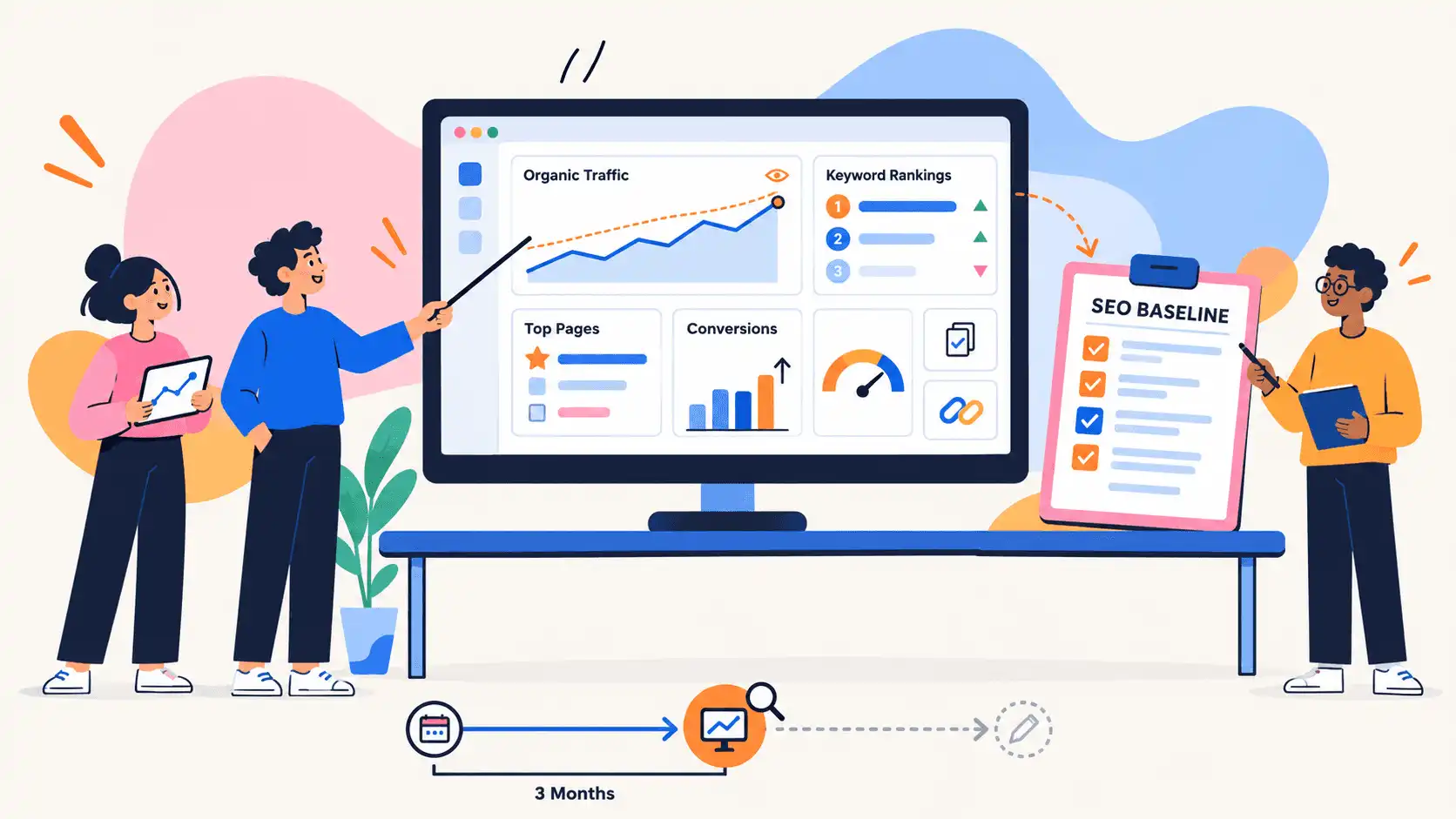
Benchmarking means recording how your current website performs in organic search before you change anything. Without this, you won’t know if a dip after launch is just normal movement or a sign something went wrong during migration.
Set up your tracking early
You’ll need Google Analytics 4 and Google Search Console set up on your current website before the redesign begins. GA4 shows how visitors find and use your site, while Search Console shows your site appears in Google search.
Both are free and both start collecting data within a few days of setup. But a few days of data isn’t a meaningful benchmark. If either tool isn’t set up yet, add it as early as possible, ideally at least three months before launch, so you have enough history to compare against.
Record your baseline metrics
Use GA4 and Search Console for most of your benchmarking. Paid tools like SEMrush or Ahrefs can add keyword ranking and backlink data that the free tools don’t fully cover.
Metric | Where to find it | What it tells you |
|---|---|---|
Organic traffic | GA4 → Traffic acquisition (Organic Search) | Your overall organic health and main comparison point |
Organic conversion | GA4 key events, filtered by organic sessions | Which organic traffic produces enquiries or sales |
Clicks and impressions | Search Console → Performance | Your visibility in search, even for pages with few clicks |
Keyword rankings | SEMrush Position Tracking or Organic Research | Which terms you rank for and which pages rank for them |
Top landing pages | Search Console → Performance → Pages | The pages you can least afford to break |
Indexed pages | Search Console → Indexing → Pages | How many pages Google currently indexes |
Backlinks | Search Console → Links, SEMrush Backlink Analytics | Which pages other websites link to |
Core Web Vitals | Search Console → Core Web Vitrals, PageSpeed Insights | How fast and stable your pages are for real users |
Export each report into one dated spreadsheet. Record at least the last three months of data and, if your tools have been running long enough, the same period last year, so you can account for seasonality when you compare later.
Step 2: Audit your existing website
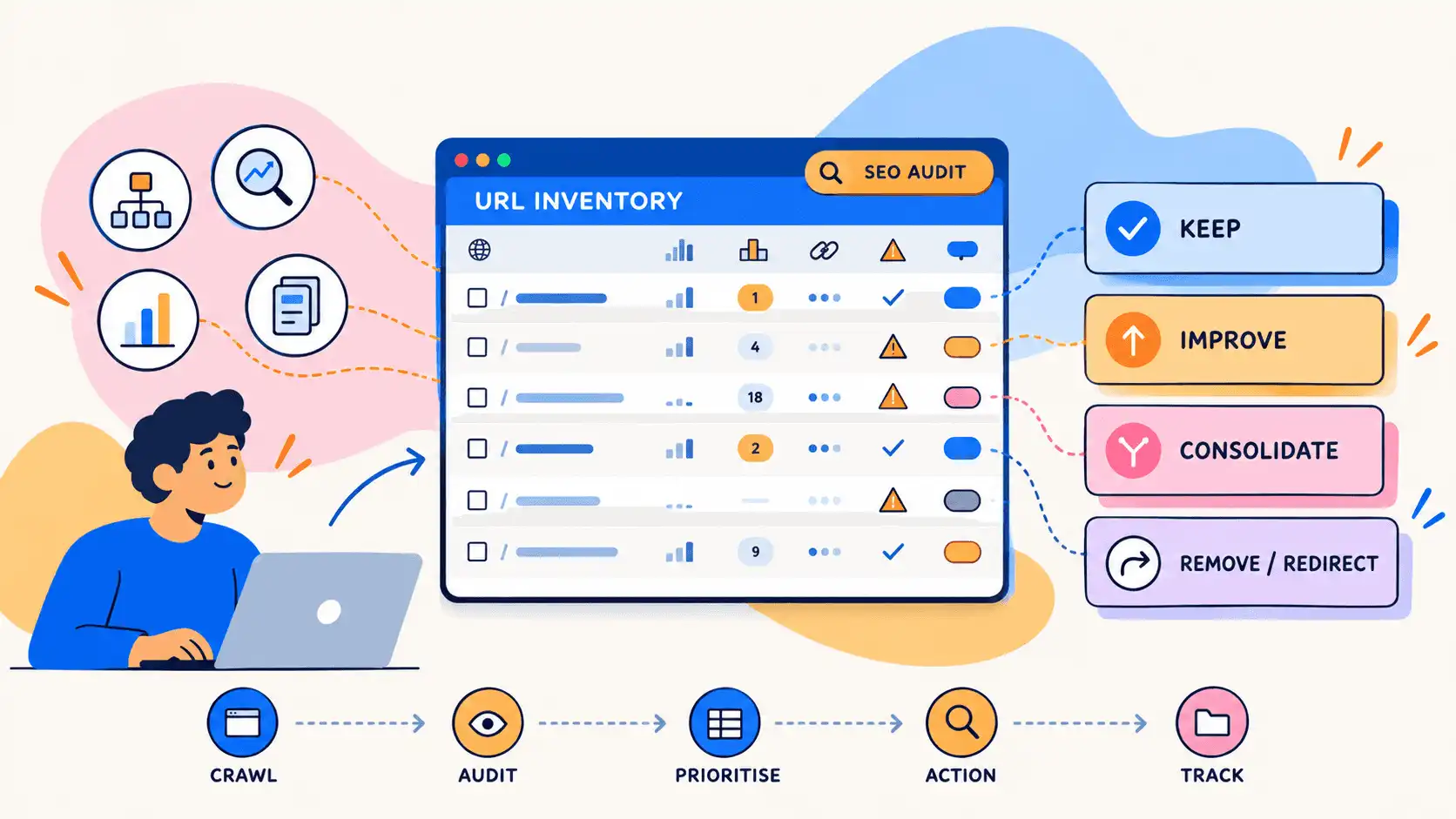
Auditing your website means creating a spreadsheet of every page on your current site, called a URL inventory and using it to decide what to keep, improve, consolidate or remove. You’ll build this spreadsheet in four stages.
Crawl your existing website
A crawler is software that moves through your website like a search engine, following links and recording what it finds. Tools such as Screaming Frog’s SEO Spider (free for up to 500 URLs), Sitebulb or SEMrush Site Audit list every URL with its status code, page title, meta description, H1, canonical tag and internal links.
Export your crawl results into a spreadsheet, with one row for each URL. This becomes your URL inventory, and you’ll keep adding to it as you go through the redesign.
Crawlers start at your homepage and follow links from page to page, so it can only find pages that another page links to. Pages with no internal links won’t appear in your crawl. These typically include old landing pages from past campaigns, pages removed from the menu but never deleted, PDFs linked only from emails and blog posts that dropped off paginated archive pages.
To find them, export URL lists from these sources and compare them with your crawl:
XML sitemap: visit yourdomain.com/sitemap.xml or upload it directly into Screaming Frog using list mode.
Your CMS: most platforms let you export a list of all published pages and posts.
Search Console: go to Performance → Pages and export every URL that has received impressions.
GA4: export the landing page report to capture any URL that has received visits.
Add any URLs your crawl missed as new rows in your URL inventory. These are orphaned pages with no internal links pointing to them. They’re easy to lose during a redesign because no one knows they exist, even though some might still bring in traffic or backlinks.
Add performance data to find your most valuable pages
Next, add a column to your URL inventory for each of the following and fill in the data for every URL:
Column to add | Where to get the date |
|---|---|
Organic clicks | Search Console → Performance → Pages (last 12 months, or as much data as you have) |
Main ranking keywords | Semrush Organic Research → Pages, or Search Console → Performance → Queries filtered by page |
Organic conversions | GA4 → Landing page report, filtered to organic traffic |
Referring domains | Semrush Backlink Analytics → Indexed Pages, or Search Console → Links → Top linked pages |
Commerical importance | Your own judgement: mark service, product and key conversion pages as high priority |
A page that scores well in any one column deserves protection. A blog post with modest traffic but links from 20 other websites matters as much as a busy service page.
Flag existing SEO problems
Your crawl results will also show what's already wrong. Add an "Issues" column to your URL inventory and note any problems on each page, such as broken links, missing or duplicate titles and meta descriptions, missing or multiple H1s, incorrect canonicals, redirect chains, thin content or missing alt text.
A redesign shouldn’t carry these problems over to your new site. Flagging them now means you can fix them in the new templates, which is the easiest and most cost-effective time to do it.
Decide what stays, changes, merges or goes
Finally, add a "Decision" column to your URL inventory and give every URL one of four labels:
Decision | When to use it | Example |
|---|---|---|
Keep | The page performs well and is still accurate | A service page ranking on page one |
Improve | The page has value but weak optimisation or outdated content | A guide with good links but old information |
Consolidate | Several pages cover the same topic and compete with each other | Three thin blog posts on the same subject |
Remove/redirect | The page has no traffic, links or purpose | An expired event page |
Your finished URL inventory is the foundation for your new site structure (Step 5) and your redirect map (Step 6).
Step 3: Research your users and competitors

Before planning your new site, learn what your customers need and where your closest competitors outrank you in organic search.
Ask your customers what they struggle to find or do on your current site. Then run a conversion rate optimisation (CRO) audit to see where visitors drop off, which calls to action they ignore and where forms get abandoned. Often, the problem is the wording, not the design. Clearer UX writing on buttons, forms and error messages can make a real difference. User recordings and heatmaps from tools like Microsoft Clarity or Hotjar will show you this behaviour in action.
Next, run a keyword gap analysis using a tool like SEMrush. Compare your domain with two or three of your closest competitors. This will show you the search terms they rank for that you don’t, gaps you can plan to fill with your new site structure and content, instead of adding them as an afterthought. Keyword gaps are just one part of a bigger SEO strategy, and a redesign is the perfect time to revisit yours.
Step 4: Set goals and bring SEO in from the start

Before any design work begins, agree why the redesign is happening, what it needs to achieve and who will be involved at each stage, with SEO part of the team from day one.
Start with the business case. Your goals might include improving conversion rates, launching new service pages or moving to a CMS your team can manage. Make each goal measurable, such as "increase enquiry form submissions by 20%", so you can judge the redesign's success after launch.
Then make protecting organic performance a goal in its own right: keeping organic traffic and priority rankings at or above the benchmark you recorded in Step 1.
Finally, document who's involved and when. A RACI chart, which sets out who is Responsible, Accountable, Consulted and Informed at each stage, keeps everyone clear on their role.
Bring your SEO specialist into the project from the very first planning meeting, right alongside design, development and content. They should sign off on site structure, templates and redirects before launch. Most SEO problems in redesigns happen when SEO is only brought in at the end to check the finished site.
Step 5: Plan your site structure with SEO and UX in mind

Plan a site structure that makes your most important pages easy for both visitors and search engines to find. Decisions that look like pure design or UX choices often have a direct effect on SEO:
Navigation: pages in your main menu receive links from every page on the site. Dropping a service page from the menu to clean up the design can quietly weaken its rankings.
Page hierarchy: group related pages logically, such as /services/web-design sitting under /services.
Crawl depth: keep important pages within a few clicks of the homepage. Three clicks is a common guideline, and priority service pages should ideally be one or two clicks away. Deeply buried pages are harder to find and tend to be crawled less often.
Internal linking: plan contextual links between related blog posts, guides and case studies, and from each of these to the relevant service and contact pages.
Orphaned pages: make sure every page you keep is linked to from at least one other relevant page.
User journeys: map the routes customers actually take, such as reading a guide, visiting a service page and then getting in touch, and make those routes easy to follow.
Clear labels: menu items and headings should describe exactly what's on the page, so visitors and search engines understand where each link leads.
Remember: if your site structure makes sense to people, it will usually make sense to search engines too.
Step 6: Map URL changes and redirects
Keep existing URLs wherever possible and for every URL that does change, set up a 301 redirect from the old address to its closest new equivalent. Failing to do this can lead to 404 error pages for search engines and users, which impacts engagement and traffic.
Only change URLs when there’s a good reason
If you decide to change a URL, it will need a redirect, testing and monitoring after launch. The more URLs you change, the more chances there are for something to go wrong.
Changing a URL makes sense when:
It's messy, with parameters or ID numbers (such as /page?id=4821)
You're restructuring the site into clearer sections (such as moving /web-design to /services/web-design)
You're merging several pages into one
Changing a URL just because you prefer slightly different wording usually isn’t a good enough reason.
Google also recommends changing one thing at a time. If you're planning a new domain, a new CMS and a new design, spread them out if you can. That way, if rankings drop, it's easier to work out why.
Build your redirect map
A redirect map is a spreadsheet listing every old URL, where it should go and what action to take:
Old URL | New URL | Action |
|---|---|---|
/old-service | /services/new-service | 301 |
/about-us | /about | 301 |
/blog/seo-tips-1, /blog/seo-tips-2 | /insights/seo-guide | 301 (consolidated) |
/events/2024-launch | – | 410 (removed, no equivalent) |
/contact | /contact | Keep |
Always redirect to the closest matching page. If you’ve removed content and there’s no relevant replacement, return a 404 or 410 status so Google knows the page is gone.
Use 301 redirects for permanently moved pages
A 301 redirect automatically sends visitors and search engines from an old URL to a new one and tells Google the move is permanent. Google’s own guidance confirms that 301s and other permanent redirects don’t cause a loss of PageRank, so the authority from the old page passes to the new one. Keep redirects in place for at least a year, ideally, keep them for good.
Avoid common redirect mistakes
Redirecting everything to the homepage. Google may treat these as "soft 404s", meaning the pages are treated as missing.
Redirect chains. Old URL → new URL → newer URL slows pages down. Google's redirects documentation advises redirecting straight to the final destination.
Redirect loops. Two URLs redirecting to each other leave visitors with an error.
Irrelevant destinations. Redirecting a web design page to a general blog post loses the relevance that made it rank.
Leaving valuable URLs as 404s. Redirect any page with traffic or backlinks; don't leave it to break.
Step 7: Protect and improve your content

Keep the content that’s earning your rankings and use the redesign to improve pages that aren’t performing; don’t just rewrite everything to fit the new design. New layouts often mean trimming copy, so check each of the following:
Existing copy: keep the substance of pages that rank and optimise them rather than replacing them completely.
Keyword targeting: make sure each page still clearly answers the search it ranks for or is trying to rank for. Create a keyword map listing every page and its target keywords, so no two pages compete for the same search.
Headings: Clear headings help search engines and screen readers understand how each page is organised, and they make your content easier for AI search tools to interpret, which is central to generative engine optimisation.
Page titles and meta descriptions: check that every title and description has been migrated and still reflects the page, as templates often default to the page name. They're what people see in search results, so they should be accurate and give people a reason to click.
Internal links: links inside body copy are easily lost when content is rebuilt in new design blocks. Compare each rebuilt page against the original and restore any missing links.
Images and alt text: carry across alt text and descriptive file names and compress new images.
Structured data: make sure schema markup, such as Organisation, Article, Breadcrumb or FAQ, still appears where relevant. Schema helps search engines understand the meaning and context of your pages.
Don’t remove pages with rankings, organic traffic or valuable backlinks just because they don’t fit the new design. Your design should make room for them.
Step 8: Design templates that support SEO
Design decisions determine how much SEO your pages can carry, so review wireframes and templates with SEO in mind before development begins. Check that:
Every template has one clear H1, and headings are real text rather than images
There's room for the copy your ranking pages need, not just short marketing lines
Navigation labels are descriptive
Hero images, video and animations won't slow down the page
Accessible colour contrast and readable fonts are built into the design system
Visual design is what draws users in, but it needs to work with SEO, not against it. It’s much easier and cheaper to fix these issues in a wireframe than after the site is built.
The platform you build on matters too. Choose a CMS that lets you control page titles, meta descriptions, URLs, redirects and structured data. Platforms such as Framer include these settings as standard, while WordPress sites typically rely on SEO plugins such as Yoast or Rank Math.
Step 9: Build on a protected staging site

Build and test the new website on a private staging site that search engines can’t access, so unfinished pages never appear in search results.
Password-protect the staging site. This is the most reliable option because Googlebot can't access a page that requires a login.
Add a noindex tag as a second layer. A <meta name="robots" content="noindex"> tag tells Google not to show a page in search results.
Don't rely on robots.txt alone. Google's noindex guide explains that a page blocked in robots.txt can still be indexed if other sites link to it, and Google can't see a noindex tag on a page it can't crawl.
Keep staging URLs out of the finished build. Check that canonicals, internal links, image paths and the XML sitemap don't reference the staging domain.
Keep a written list of every restriction you add, so you know exactly what to remove when it’s time to launch.
Step 10: Test the redesigned website before launch
Before launch, crawl the staging site and check every redirect, template, and tracking setup so you can fix problems before Google or your customers see them.
Crawl the staging site
Run the same crawler on staging that you used on the live site. Most crawlers, including Screaming Frog, can log in to a password-protected staging environment. Compare the two crawls: are all the pages you planned to keep present, have titles, descriptions and headings carried across, and are there new broken links or duplicate pages?
Complete your pre-launch SEO checks
Check | Header 2 |
|---|---|
Redirects | Every old URL returns 301 to the correct new page |
Broken links | No internal or external links returning 404 errors |
Titles and meta descriptions | Present, unique and migrated from old site |
Heading structure | One H1 per page, with logical H2s and H3s |
Canonicals | Self-referencing on the new URLs, with no staging URLs |
XML sitemap | Only live, indexable URLs with 200 status |
Robots directives | Navigation, froms and content work properly on phones |
Mobile usability | Navigation, forms and content work properly on phones |
Page speed | Key tempplates at least as fast as the old site, neasured with PageSpeed Insights |
Accessibility | Contrast, alt text and keyword navigation meet accessibility best practice |
Analytics and forms | GA4 installed, key events configured and every form submitted correctly |
To test redirects, upload your list of old URLs to the crawler in list mode and check that each returns a single 301 to a live page with a 200 status.
Step 11: Launch the new site

When your new site goes live, remove staging restrictions, switch on redirects, submit your new sitemap and check that tracking works, in that order. If your traffic is seasonal, launch during a quieter period. Avoid launching just before a weekend or holiday, when fewer people are around to fix problems.
Remove staging restrictions. Take off password protection and remove noindex tags. View the page source of key pages and search for "noindex" to confirm. If your CMS has a "discourage search engines" setting, switch it off.
Check robots.txt. Visit yourdomain.com/robots.txt and make sure it doesn't contain Disallow: /, which blocks your whole site.
Switch on and test redirects. Run your list of old URLs through the crawler again, this time against the live site.
Check canonical URLs. Confirm they point to live URLs on your real domain, not staging addresses or old URLs.
Submit your XML sitemap. Open your sitemap (usually at /sitemap.xml) and check that lists only live, indexable pages. Then, in Search Console, go to Indexing → Sitemaps, enter the sitemap URL and click Submit. Google's sitemap guide explains the process in more detail.
Verify analytics and conversion tracking. Open GA4's Realtime report, browse the site and submit a test form to confirm key events fire. Check that your Search Console verification still works too.
Test priority URLs. Run your most important pages through Search Console's URL Inspection tool to confirm Google can access and index them.
Update links you control. Change URLs in your Google Business Profile, social profiles, email signatures and ad campaigns.
Step 12: Monitor performance after launch

After launch, monitor indexing, redirects, rankings, traffic and conversions against your benchmark, checking weekly for the first month and monthly for at least three months.
Monitor crawling and indexing
Check Search Console's Pages report for sudden increases in pages marked "Excluded by noindex tag", "Not found (404)" or "Crawled – currently not indexed", and check your Sitemaps report to see how many submitted URLs are being indexed.
Check redirects and 404s
Some URLs usually slip through, no matter how thorough the redirect map. Review 404 errors in Search Console and "page not found" views in GA4 and add redirects for any old URLs still receiving visits or backed by links.
Compare performance against your benchmark
Compare organic traffic, rankings, clicks and impressions, landing pages, conversions and site performance with your pre-redesign benchmark. Compare at page level, not just overall totals: a stable total can hide a priority service page that has dropped out of the rankings.
Expect some errors, but investigate sustained losses
Some fluctuation is normal. Google notes that for medium-sized websites, it can take a few weeks or more for new URLs to replace the old ones in search results, and longer for larger sites.
What isn't normal is a sharp drop across the whole site, priority pages disappearing entirely, or conversions falling. If traffic holds steady, that usually points to a tracking or UX issue. Investigate page by page: is the redirect working, did the content change, and is the page indexable? Also check Google's Search Status Dashboard, in case a core algorithm update rolled out around your launch.
Website Redesign SEO Checklist
Before redesign | Before launch | After launch |
|---|---|---|
Benchmark performance | Test redirects | Check indexing |
Crawl existing site | Crawl staging site | Monitor rankings |
Identify valuable pages | Check metadata | Monitor traffic |
Research competitor keywords | Check caonicals | Check 404s |
Set SEO goals | Validate sitemap | Review redirects |
Plan site structure | Test mobile and performance | Compare conversions |
Map URLs and redirects | Protect staging site | Update external profile |
Redesign Your Website with SEO Built In
Protecting your SEO doesn’t mean you have to avoid change. When done right, a redesign is your chance to improve your site architecture, performance, user experience, content and search foundations all at once. That way, your new website doesn’t just keep its rankings, it builds on them.
The smoothest redesigns happen when design, development, content, and SEO are considered together from the start, not handed off from one team to the next.
That’s exactly how we work at Studio East. Our Digital & Web team designs and builds websites with search in mind from the first wireframe, while our Marketing & Performance team handles benchmarking, migration, and ongoing monitoring.
If you're planning a website redesign, we can help. Whether you need support with the entire project, an SEO audit or a clear strategy to guide your next steps, we can work with you wherever you need us. Book a discovery call and let's talk through your plans.
Frequently Asked Questions
Yes. A website redesign can raise or lower rankings depending on how it’s handled. A visual refresh that keeps the same URLs and content rarely changes rankings. Changing URLs, content, navigation or your CMS without redirects and SEO planning often causes traffic drops.
Most well-planned website redesigns recover within a few weeks. Larger sites, or sites with many URL changes, can take several months. If rankings are still falling after a month, check for broken redirects, leftover noindex tags or missing content.
Yes. A website redesign can improve SEO by fixing slow page speed, unclear site structure, weak internal linking and limited CMS control. These gains only last if the redesign keeps the URLs, content and backlinks that already rank.
Yes. Changing your CMS usually changes URLs, templates and technical settings, all of which affect SEO. Map every URL change to a 301 redirect. Check that the new CMS lets you control titles, meta descriptions, redirects and structured data.
No. Google doesn’t need to be told about a website redesign. You can help it find your new pages faster by submitting your updated XML sitemap and inspecting priority URLs in Google Search Console. If the domain is changing, use Search Console’s Change of Address tool.
Most businesses redesign their website every three to five years. The real trigger is need: redesign when your site no longer reflects your brand, converts poorly or limits your team. Otherwise, regular smaller improvements are usually more effective.
Maybe your tech is out of date, your site feels clunky, conversions are low or your brand has evolved. Whatever the reason, a website redesign can be a smart move. But before you get excited about new designs, make sure you have a plan to protect your current search rankings and carry them over to your new site.
If your organic traffic isn’t where you want it, a redesign can feel like a fresh start. But launching a new website doesn’t guarantee better rankings. In fact, if you’re not careful, you could lose the visibility you’ve already built. The key is to keep what’s working, carry those signals over, and use the redesign as a chance to fix what isn’t.
This guide covers everything you need to know about how to redesign a website without losing SEO, step by step, from the first audit to the months after launch. And if you'd rather have experts handle it, our team can plan it with you.
What Is a Website Redesign?
A website redesign is a big update to your site’s design, structure, content or technology. Most businesses take this step when their website no longer reflects their brand, serves users well or supports their goals.
What does a website redesign include?
A website redesign can include changes to a site's visual design, user experience, content, architecture, technical foundations, accessibility and SEO. Most redesigns involve several of these at once:
• Brand and visual design: layout, colour, typography and imagery
• User experience: navigation, user journeys, forms and interactive elements
• Content: messaging, page copy and which pages exist
• Site architecture: page hierarchy, URL structure and internal links
• Technical foundations: CMS, hosting, code, speed and security
• Accessibility: how easily everyone can use and understand the site
• SEO: keyword targeting, metadata, structured data and indexability
Website refresh vs website redesign
A website refresh and a full redesign aren’t the same thing. A refresh updates the look of your existing pages- think new images, colours or layouts, while the structure stays put. A redesign changes how your site is built or organised from the ground up.
That difference really matters for SEO. A refresh rarely puts your rankings at risk unless you’re making big changes to your content. But if you’re changing URLs, templates, navigation or your CMS, you’ll need a solid migration plan.
Website refresh | Website redesign | |
|---|---|---|
Scope | Visual updates to existing pages | Rebuild of design, structure, content or technology |
URLs | Usually unchanged | Often changed, merged or removed |
SEO risk | Low, unless content changes significantly | Medium to high without a plan |
How to Know It's Time to Redesign Your Website
It's time to redesign your website when it no longer reflects your brand, frustrates visitors, holds back conversions or limits what your team can do, and smaller fixes haven't solved the problem. These are the most common signs:
It looks out of date. Visitors judge your business in seconds. If your website feels old, customers might wonder if you’re still relevant or able to meet their needs. When Annex came to us, their site felt more like a static product catalogue. After the redesign, it finally represented their business as a whole brand.
Your brand or positioning has changed. If you’ve rebranded, launched new services or started targeting a new audience, your website is where most people will notice that first. Getting your brand strategy clear before you start the design process saves you from costly changes down the line.
Visitors struggle to find what they need. If you keep hearing “where do I find…” or see high exit rates on key pages, or your support team gets questions your website should answer, it’s a sign your structure isn’t working.
It doesn't work well on mobile. Google now uses mobile-first indexing, so it looks at your mobile site first when ranking pages. If your mobile experience is poor, you’ll lose out with both customers and search engines.
It isn't converting. If you’re getting steady traffic but few enquiries or sales, the problem is usually with your messaging, user journeys or calls to action, not your visibility.
Your CMS is holding you back. If you need a developer every time you want to add a page, update content or install a new tool, it might be time to invest in a new platform.
It’s slow, and fixes haven’t helped. If your site’s speed is held back by its code or platform, a full rebuild is often the only real solution.
It can’t support your SEO. If you can’t edit page titles, add structured data, create new landing pages or control your URLs, your website is holding back your search growth and making even the SEO basics harder than they need to be.
Whatever your reason, a redesign should build on the visibility you already have, not reset it.
How a Website Redesign Can Hurt Your SEO
A website redesign can hurt your SEO if you lose the signals that helped your pages rank. That happens when old URLs aren’t redirected, ranking content gets cut or rewritten, internal links break or staging settings accidentally block search engines.
These problems fall into six areas:
SEO risk area | What can go wrong | Potential SEO impact |
|---|---|---|
URLs & redirects | URLs change without proper 301 redirects, pages are deleted or redirects lead to irrelevant pages. | Rankings drop and SEO authority fails to transfer to new URLs. |
Content & keyword targeting | High-performing content, keywords, headings or metadata are removed or significantly changed. | Rankings fall as pages lose relevance and search intent. |
Site architecture & internal linking | Important pages become harder to find, internal links disappear or pages become orphaned. | Search engines struggle to discover and prioritise pages. |
Technical SEO & performance | Incorrect noindex rules, canonicals, sitemaps or JavaScript issues affect indexing and performance. | Pages may be blocked, incorrectly rendered or lose rankings. |
Backlinks & authority | Backlinks point to broken URLs or valuable pages are unnecessarily consolidated. | Existing backlink authority is lost rather than transferred. |
Tracking & measurement | GA4, Search Console or conversion tracking breaks, or SEO benchmarks are missing. | Traffic and ranking issues go unnoticed and become harder to fix. |
Most of these problems don’t show up in design mock-ups, and many only appear weeks after launch. That’s why the best redesigns bring SEO specialists, designers and developers together from the start, instead of passing the project from one team to another. Web design and SEO work best when they go hand in hand.
How to Redesign Your Website Without Losing SEO: Step by Step
Redesigning your website without losing SEO comes down to following twelve clear steps:
Benchmark your current SEO performance
Audit your existing website
Research your users and competitors
Set your business and SEO goals
Plan your site structure with SEO and UX in mind
Map URL changes and redirects
Protect and improve your content
Design templates that support SEO
Build on a protected staging site
Test the redesigned website before launch
Launch the new site
Monitor performance after launch
Step 1: Benchmark your current SEO performance
Benchmarking means recording how your current website performs in organic search before you change anything. Without this, you won’t know if a dip after launch is just normal movement or a sign something went wrong during migration.
Set up your tracking early
You’ll need Google Analytics 4 and Google Search Console set up on your current website before the redesign begins. GA4 shows how visitors find and use your site, while Search Console shows your site appears in Google search.
Both are free and both start collecting data within a few days of setup. But a few days of data isn’t a meaningful benchmark. If either tool isn’t set up yet, add it as early as possible, ideally at least three months before launch, so you have enough history to compare against.
Record your baseline metrics
Use GA4 and Search Console for most of your benchmarking. Paid tools like SEMrush or Ahrefs can add keyword ranking and backlink data that the free tools don’t fully cover.
Metric | Where to find it | What it tells you |
|---|---|---|
Organic traffic | GA4 → Traffic acquisition (Organic Search) | Your overall organic health and main comparison point |
Organic conversion | GA4 key events, filtered by organic sessions | Which organic traffic produces enquiries or sales |
Clicks and impressions | Search Console → Performance | Your visibility in search, even for pages with few clicks |
Keyword rankings | SEMrush Position Tracking or Organic Research | Which terms you rank for and which pages rank for them |
Top landing pages | Search Console → Performance → Pages | The pages you can least afford to break |
Indexed pages | Search Console → Indexing → Pages | How many pages Google currently indexes |
Backlinks | Search Console → Links, SEMrush Backlink Analytics | Which pages other websites link to |
Core Web Vitals | Search Console → Core Web Vitrals, PageSpeed Insights | How fast and stable your pages are for real users |
Export each report into one dated spreadsheet. Record at least the last three months of data and, if your tools have been running long enough, the same period last year, so you can account for seasonality when you compare later.
Step 2: Audit your existing website
Auditing your website means creating a spreadsheet of every page on your current site, called a URL inventory and using it to decide what to keep, improve, consolidate or remove. You’ll build this spreadsheet in four stages.
Crawl your existing website
A crawler is software that moves through your website like a search engine, following links and recording what it finds. Tools such as Screaming Frog’s SEO Spider (free for up to 500 URLs), Sitebulb or SEMrush Site Audit list every URL with its status code, page title, meta description, H1, canonical tag and internal links.
Export your crawl results into a spreadsheet, with one row for each URL. This becomes your URL inventory, and you’ll keep adding to it as you go through the redesign.
Crawlers start at your homepage and follow links from page to page, so it can only find pages that another page links to. Pages with no internal links won’t appear in your crawl. These typically include old landing pages from past campaigns, pages removed from the menu but never deleted, PDFs linked only from emails and blog posts that dropped off paginated archive pages.
To find them, export URL lists from these sources and compare them with your crawl:
XML sitemap: visit yourdomain.com/sitemap.xml or upload it directly into Screaming Frog using list mode.
Your CMS: most platforms let you export a list of all published pages and posts.
Search Console: go to Performance → Pages and export every URL that has received impressions.
GA4: export the landing page report to capture any URL that has received visits.
Add any URLs your crawl missed as new rows in your URL inventory. These are orphaned pages with no internal links pointing to them. They’re easy to lose during a redesign because no one knows they exist, even though some might still bring in traffic or backlinks.
Add performance data to find your most valuable pages
Next, add a column to your URL inventory for each of the following and fill in the data for every URL:
Column to add | Where to get the date |
|---|---|
Organic clicks | Search Console → Performance → Pages (last 12 months, or as much data as you have) |
Main ranking keywords | Semrush Organic Research → Pages, or Search Console → Performance → Queries filtered by page |
Organic conversions | GA4 → Landing page report, filtered to organic traffic |
Referring domains | Semrush Backlink Analytics → Indexed Pages, or Search Console → Links → Top linked pages |
Commerical importance | Your own judgement: mark service, product and key conversion pages as high priority |
A page that scores well in any one column deserves protection. A blog post with modest traffic but links from 20 other websites matters as much as a busy service page.
Flag existing SEO problems
Your crawl results will also show what's already wrong. Add an "Issues" column to your URL inventory and note any problems on each page, such as broken links, missing or duplicate titles and meta descriptions, missing or multiple H1s, incorrect canonicals, redirect chains, thin content or missing alt text.
A redesign shouldn’t carry these problems over to your new site. Flagging them now means you can fix them in the new templates, which is the easiest and most cost-effective time to do it.
Decide what stays, changes, merges or goes
Finally, add a "Decision" column to your URL inventory and give every URL one of four labels:
Decision | When to use it | Example |
|---|---|---|
Keep | The page performs well and is still accurate | A service page ranking on page one |
Improve | The page has value but weak optimisation or outdated content | A guide with good links but old information |
Consolidate | Several pages cover the same topic and compete with each other | Three thin blog posts on the same subject |
Remove/redirect | The page has no traffic, links or purpose | An expired event page |
Your finished URL inventory is the foundation for your new site structure (Step 5) and your redirect map (Step 6).
Step 3: Research your users and competitors
Before planning your new site, learn what your customers need and where your closest competitors outrank you in organic search.
Ask your customers what they struggle to find or do on your current site. Then run a conversion rate optimisation (CRO) audit to see where visitors drop off, which calls to action they ignore and where forms get abandoned. Often, the problem is the wording, not the design. Clearer UX writing on buttons, forms and error messages can make a real difference. User recordings and heatmaps from tools like Microsoft Clarity or Hotjar will show you this behaviour in action.
Next, run a keyword gap analysis using a tool like SEMrush. Compare your domain with two or three of your closest competitors. This will show you the search terms they rank for that you don’t, gaps you can plan to fill with your new site structure and content, instead of adding them as an afterthought. Keyword gaps are just one part of a bigger SEO strategy, and a redesign is the perfect time to revisit yours.
Step 4: Set goals and bring SEO in from the start
Before any design work begins, agree why the redesign is happening, what it needs to achieve and who will be involved at each stage, with SEO part of the team from day one.
Start with the business case. Your goals might include improving conversion rates, launching new service pages or moving to a CMS your team can manage. Make each goal measurable, such as "increase enquiry form submissions by 20%", so you can judge the redesign's success after launch.
Then make protecting organic performance a goal in its own right: keeping organic traffic and priority rankings at or above the benchmark you recorded in Step 1.
Finally, document who's involved and when. A RACI chart, which sets out who is Responsible, Accountable, Consulted and Informed at each stage, keeps everyone clear on their role.
Bring your SEO specialist into the project from the very first planning meeting, right alongside design, development and content. They should sign off on site structure, templates and redirects before launch. Most SEO problems in redesigns happen when SEO is only brought in at the end to check the finished site.
Step 5: Plan your site structure with SEO and UX in mind
Plan a site structure that makes your most important pages easy for both visitors and search engines to find. Decisions that look like pure design or UX choices often have a direct effect on SEO:
Navigation: pages in your main menu receive links from every page on the site. Dropping a service page from the menu to clean up the design can quietly weaken its rankings.
Page hierarchy: group related pages logically, such as /services/web-design sitting under /services.
Crawl depth: keep important pages within a few clicks of the homepage. Three clicks is a common guideline, and priority service pages should ideally be one or two clicks away. Deeply buried pages are harder to find and tend to be crawled less often.
Internal linking: plan contextual links between related blog posts, guides and case studies, and from each of these to the relevant service and contact pages.
Orphaned pages: make sure every page you keep is linked to from at least one other relevant page.
User journeys: map the routes customers actually take, such as reading a guide, visiting a service page and then getting in touch, and make those routes easy to follow.
Clear labels: menu items and headings should describe exactly what's on the page, so visitors and search engines understand where each link leads.
Remember: if your site structure makes sense to people, it will usually make sense to search engines too.
Step 6: Map URL changes and redirects
Keep existing URLs wherever possible and for every URL that does change, set up a 301 redirect from the old address to its closest new equivalent. Failing to do this can lead to 404 error pages for search engines and users, which impacts engagement and traffic.
Only change URLs when there’s a good reason
If you decide to change a URL, it will need a redirect, testing and monitoring after launch. The more URLs you change, the more chances there are for something to go wrong.
Changing a URL makes sense when:
It's messy, with parameters or ID numbers (such as /page?id=4821)
You're restructuring the site into clearer sections (such as moving /web-design to /services/web-design)
You're merging several pages into one
Changing a URL just because you prefer slightly different wording usually isn’t a good enough reason.
Google also recommends changing one thing at a time. If you're planning a new domain, a new CMS and a new design, spread them out if you can. That way, if rankings drop, it's easier to work out why.
Build your redirect map
A redirect map is a spreadsheet listing every old URL, where it should go and what action to take:
Old URL | New URL | Action |
|---|---|---|
/old-service | /services/new-service | 301 |
/about-us | /about | 301 |
/blog/seo-tips-1, /blog/seo-tips-2 | /insights/seo-guide | 301 (consolidated) |
/events/2024-launch | – | 410 (removed, no equivalent) |
/contact | /contact | Keep |
Always redirect to the closest matching page. If you’ve removed content and there’s no relevant replacement, return a 404 or 410 status so Google knows the page is gone.
Use 301 redirects for permanently moved pages
A 301 redirect automatically sends visitors and search engines from an old URL to a new one and tells Google the move is permanent. Google’s own guidance confirms that 301s and other permanent redirects don’t cause a loss of PageRank, so the authority from the old page passes to the new one. Keep redirects in place for at least a year, ideally, keep them for good.
Avoid common redirect mistakes
Redirecting everything to the homepage. Google may treat these as "soft 404s", meaning the pages are treated as missing.
Redirect chains. Old URL → new URL → newer URL slows pages down. Google's redirects documentation advises redirecting straight to the final destination.
Redirect loops. Two URLs redirecting to each other leave visitors with an error.
Irrelevant destinations. Redirecting a web design page to a general blog post loses the relevance that made it rank.
Leaving valuable URLs as 404s. Redirect any page with traffic or backlinks; don't leave it to break.
Step 7: Protect and improve your content
Keep the content that’s earning your rankings and use the redesign to improve pages that aren’t performing; don’t just rewrite everything to fit the new design. New layouts often mean trimming copy, so check each of the following:
Existing copy: keep the substance of pages that rank and optimise them rather than replacing them completely.
Keyword targeting: make sure each page still clearly answers the search it ranks for or is trying to rank for. Create a keyword map listing every page and its target keywords, so no two pages compete for the same search.
Headings: Clear headings help search engines and screen readers understand how each page is organised, and they make your content easier for AI search tools to interpret, which is central to generative engine optimisation.
Page titles and meta descriptions: check that every title and description has been migrated and still reflects the page, as templates often default to the page name. They're what people see in search results, so they should be accurate and give people a reason to click.
Internal links: links inside body copy are easily lost when content is rebuilt in new design blocks. Compare each rebuilt page against the original and restore any missing links.
Images and alt text: carry across alt text and descriptive file names and compress new images.
Structured data: make sure schema markup, such as Organisation, Article, Breadcrumb or FAQ, still appears where relevant. Schema helps search engines understand the meaning and context of your pages.
Don’t remove pages with rankings, organic traffic or valuable backlinks just because they don’t fit the new design. Your design should make room for them.
Step 8: Design templates that support SEO
Design decisions determine how much SEO your pages can carry, so review wireframes and templates with SEO in mind before development begins. Check that:
Every template has one clear H1, and headings are real text rather than images
There's room for the copy your ranking pages need, not just short marketing lines
Navigation labels are descriptive
Hero images, video and animations won't slow down the page
Accessible colour contrast and readable fonts are built into the design system
Visual design is what draws users in, but it needs to work with SEO, not against it. It’s much easier and cheaper to fix these issues in a wireframe than after the site is built.
The platform you build on matters too. Choose a CMS that lets you control page titles, meta descriptions, URLs, redirects and structured data. Platforms such as Framer include these settings as standard, while WordPress sites typically rely on SEO plugins such as Yoast or Rank Math.
Step 9: Build on a protected staging site
Build and test the new website on a private staging site that search engines can’t access, so unfinished pages never appear in search results.
Password-protect the staging site. This is the most reliable option because Googlebot can't access a page that requires a login.
Add a noindex tag as a second layer. A <meta name="robots" content="noindex"> tag tells Google not to show a page in search results.
Don't rely on robots.txt alone. Google's noindex guide explains that a page blocked in robots.txt can still be indexed if other sites link to it, and Google can't see a noindex tag on a page it can't crawl.
Keep staging URLs out of the finished build. Check that canonicals, internal links, image paths and the XML sitemap don't reference the staging domain.
Keep a written list of every restriction you add, so you know exactly what to remove when it’s time to launch.
Step 10: Test the redesigned website before launch
Before launch, crawl the staging site and check every redirect, template, and tracking setup so you can fix problems before Google or your customers see them.
Crawl the staging site
Run the same crawler on staging that you used on the live site. Most crawlers, including Screaming Frog, can log in to a password-protected staging environment. Compare the two crawls: are all the pages you planned to keep present, have titles, descriptions and headings carried across, and are there new broken links or duplicate pages?
Complete your pre-launch SEO checks
Check | Header 2 |
|---|---|
Redirects | Every old URL returns 301 to the correct new page |
Broken links | No internal or external links returning 404 errors |
Titles and meta descriptions | Present, unique and migrated from old site |
Heading structure | One H1 per page, with logical H2s and H3s |
Canonicals | Self-referencing on the new URLs, with no staging URLs |
XML sitemap | Only live, indexable URLs with 200 status |
Robots directives | Navigation, froms and content work properly on phones |
Mobile usability | Navigation, forms and content work properly on phones |
Page speed | Key tempplates at least as fast as the old site, neasured with PageSpeed Insights |
Accessibility | Contrast, alt text and keyword navigation meet accessibility best practice |
Analytics and forms | GA4 installed, key events configured and every form submitted correctly |
To test redirects, upload your list of old URLs to the crawler in list mode and check that each returns a single 301 to a live page with a 200 status.
Step 11: Launch the new site
When your new site goes live, remove staging restrictions, switch on redirects, submit your new sitemap and check that tracking works, in that order. If your traffic is seasonal, launch during a quieter period. Avoid launching just before a weekend or holiday, when fewer people are around to fix problems.
Remove staging restrictions. Take off password protection and remove noindex tags. View the page source of key pages and search for "noindex" to confirm. If your CMS has a "discourage search engines" setting, switch it off.
Check robots.txt. Visit yourdomain.com/robots.txt and make sure it doesn't contain Disallow: /, which blocks your whole site.
Switch on and test redirects. Run your list of old URLs through the crawler again, this time against the live site.
Check canonical URLs. Confirm they point to live URLs on your real domain, not staging addresses or old URLs.
Submit your XML sitemap. Open your sitemap (usually at /sitemap.xml) and check that lists only live, indexable pages. Then, in Search Console, go to Indexing → Sitemaps, enter the sitemap URL and click Submit. Google's sitemap guide explains the process in more detail.
Verify analytics and conversion tracking. Open GA4's Realtime report, browse the site and submit a test form to confirm key events fire. Check that your Search Console verification still works too.
Test priority URLs. Run your most important pages through Search Console's URL Inspection tool to confirm Google can access and index them.
Update links you control. Change URLs in your Google Business Profile, social profiles, email signatures and ad campaigns.
Step 12: Monitor performance after launch
After launch, monitor indexing, redirects, rankings, traffic and conversions against your benchmark, checking weekly for the first month and monthly for at least three months.
Monitor crawling and indexing
Check Search Console's Pages report for sudden increases in pages marked "Excluded by noindex tag", "Not found (404)" or "Crawled – currently not indexed", and check your Sitemaps report to see how many submitted URLs are being indexed.
Check redirects and 404s
Some URLs usually slip through, no matter how thorough the redirect map. Review 404 errors in Search Console and "page not found" views in GA4 and add redirects for any old URLs still receiving visits or backed by links.
Compare performance against your benchmark
Compare organic traffic, rankings, clicks and impressions, landing pages, conversions and site performance with your pre-redesign benchmark. Compare at page level, not just overall totals: a stable total can hide a priority service page that has dropped out of the rankings.
Expect some errors, but investigate sustained losses
Some fluctuation is normal. Google notes that for medium-sized websites, it can take a few weeks or more for new URLs to replace the old ones in search results, and longer for larger sites.
What isn't normal is a sharp drop across the whole site, priority pages disappearing entirely, or conversions falling. If traffic holds steady, that usually points to a tracking or UX issue. Investigate page by page: is the redirect working, did the content change, and is the page indexable? Also check Google's Search Status Dashboard, in case a core algorithm update rolled out around your launch.
Website Redesign SEO Checklist
Before redesign | Before launch | After launch |
|---|---|---|
Benchmark performance | Test redirects | Check indexing |
Crawl existing site | Crawl staging site | Monitor rankings |
Identify valuable pages | Check metadata | Monitor traffic |
Research competitor keywords | Check caonicals | Check 404s |
Set SEO goals | Validate sitemap | Review redirects |
Plan site structure | Test mobile and performance | Compare conversions |
Map URLs and redirects | Protect staging site | Update external profile |
Redesign Your Website with SEO Built In
Protecting your SEO doesn’t mean you have to avoid change. When done right, a redesign is your chance to improve your site architecture, performance, user experience, content and search foundations all at once. That way, your new website doesn’t just keep its rankings, it builds on them.
The smoothest redesigns happen when design, development, content, and SEO are considered together from the start, not handed off from one team to the next.
That’s exactly how we work at Studio East. Our Digital & Web team designs and builds websites with search in mind from the first wireframe, while our Marketing & Performance team handles benchmarking, migration, and ongoing monitoring.
If you're planning a website redesign, we can help. Whether you need support with the entire project, an SEO audit or a clear strategy to guide your next steps, we can work with you wherever you need us. Book a discovery call and let's talk through your plans.
Frequently Asked Questions
Yes. A website redesign can raise or lower rankings depending on how it’s handled. A visual refresh that keeps the same URLs and content rarely changes rankings. Changing URLs, content, navigation or your CMS without redirects and SEO planning often causes traffic drops.
Most well-planned website redesigns recover within a few weeks. Larger sites, or sites with many URL changes, can take several months. If rankings are still falling after a month, check for broken redirects, leftover noindex tags or missing content.
Yes. A website redesign can improve SEO by fixing slow page speed, unclear site structure, weak internal linking and limited CMS control. These gains only last if the redesign keeps the URLs, content and backlinks that already rank.
Yes. Changing your CMS usually changes URLs, templates and technical settings, all of which affect SEO. Map every URL change to a 301 redirect. Check that the new CMS lets you control titles, meta descriptions, redirects and structured data.
No. Google doesn’t need to be told about a website redesign. You can help it find your new pages faster by submitting your updated XML sitemap and inspecting priority URLs in Google Search Console. If the domain is changing, use Search Console’s Change of Address tool.
Most businesses redesign their website every three to five years. The real trigger is need: redesign when your site no longer reflects your brand, converts poorly or limits your team. Otherwise, regular smaller improvements are usually more effective.